01
Create a free workspace
Start from the public signup path. New users can enter the product without a sales call or credit card.
Signup path and shared test credits are already active.
This walkthrough uses real Frugine screenshots to show the signup-to-workspace path. It is not a product recording yet.
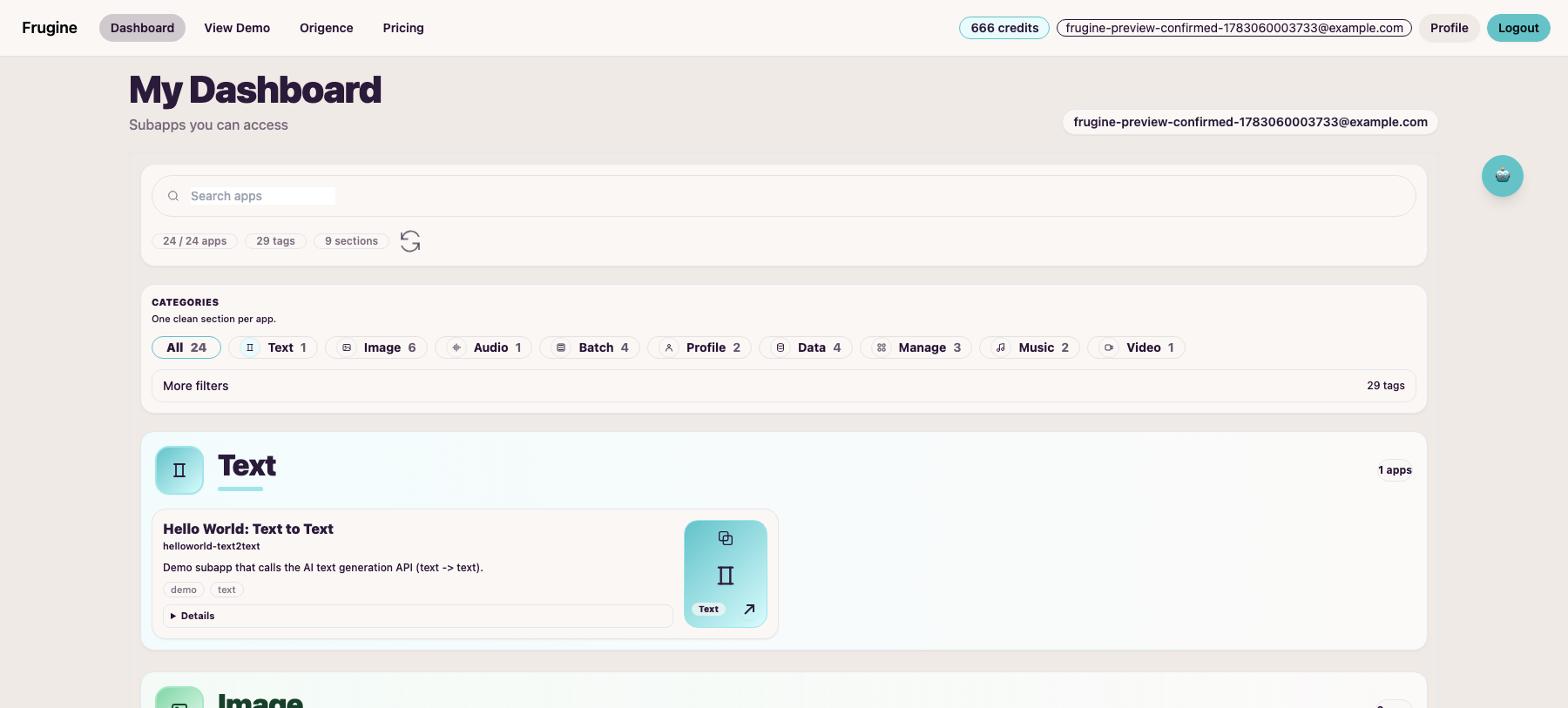
The walkthrough starts from signup and the dashboard, not a slide deck.
Screenshots show the current app catalog and credit wallet.
The same product surface is visible on mobile.
This is a screenshot walkthrough until a real product recording is available.
The goal is to remove ambiguity: new users should know what they can inspect immediately, and what still requires a live demo or pilot.
Start from the public signup path. New users can enter the product without a sales call or credit card.
The dashboard shows the app catalog, search, categories, tags and the shared credit wallet.
Users can evaluate the product from a concrete app surface instead of starting from an empty platform promise.
Use test credits for early runs, then review the output and usage trail before moving a workflow toward production.
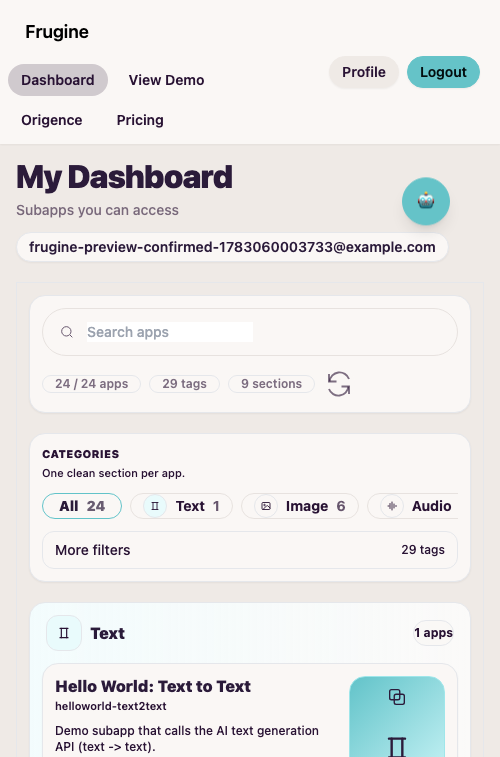
Use the walkthrough to inspect the product surface, then start free or book a live demo for workflow-specific questions.